Cloud Desktop Tools to Replace RDP (PVE + Sunshine + Moonlight)
5 minute read
What-is-this-Talking-About
This configuration sheet covers hardware infrastructure, virtual display solutions, performance optimization, and streaming settings, suitable for my AMD EPYC 7551 (Home) and Dual Xeon (Work) environments.
Hardware Environment
Homelab Configuration
- CPU: AMD EPYC 7551 (Home)
- Motherboard: Supermicro H11SSL-i
- Graphics Card: NVIDIA GeForce GTX 1050 Ti (4GB)
Work Server Configuration
- CPU: Dual Xeon (Work)
- Motherboard: Generic X99 Chipset
- Graphics Card: The basic display card is only for PVE use. I don’t want to modify GPU passthrough settings during maintenance, so it is equivalent to having no graphics card.
Requirements
There are many family members, and if everyone uses a laptop or PC, first of all:
- The cost of purchasing computers is very high;
- Secondly, the workload of software maintenance will be huge (need to isolate settings/reinstall systems on each computer);
- Moreover, there is a demand for PPT and light design work at home, so both Mac and Win are rigid needs;
- As an engineer, it is hard to accept that devices at home are not easy to use. For example: buying a game console or expensive graphics card (for gaming), it shouldn’t be limited to use on only one PC, where everyone who wants to play has to fight for that PC.
- NAS, centralizing all family data storage, greatly reducing the risk of data loss, alleviating the heavy work of data backup, and the terrible cost of storage devices (hard drives are really expensive).
And the above points naturally lead to the idea of moving to the cloud, building a powerful Server within the home, where hardware can be purchased once and shared by everyone to the maximum extent.
(The same requirements apply within the company, because they all pass through my hands, so the handling solutions all use PVE. I won’t mention the WorkServer situation again here, assuming it defaults to the Homelab situation.)
Troubles
When setting up the environment, I always used RDP to connect to VMs under HomeLab (installed with PVE) (including Ubuntu/Mac/Win10/Win11).
However, I found visible mouse drag lag. Although usable, it cannot meet the needs of designers. Not to mention remotely opening design software and Microsoft PowerPoint.
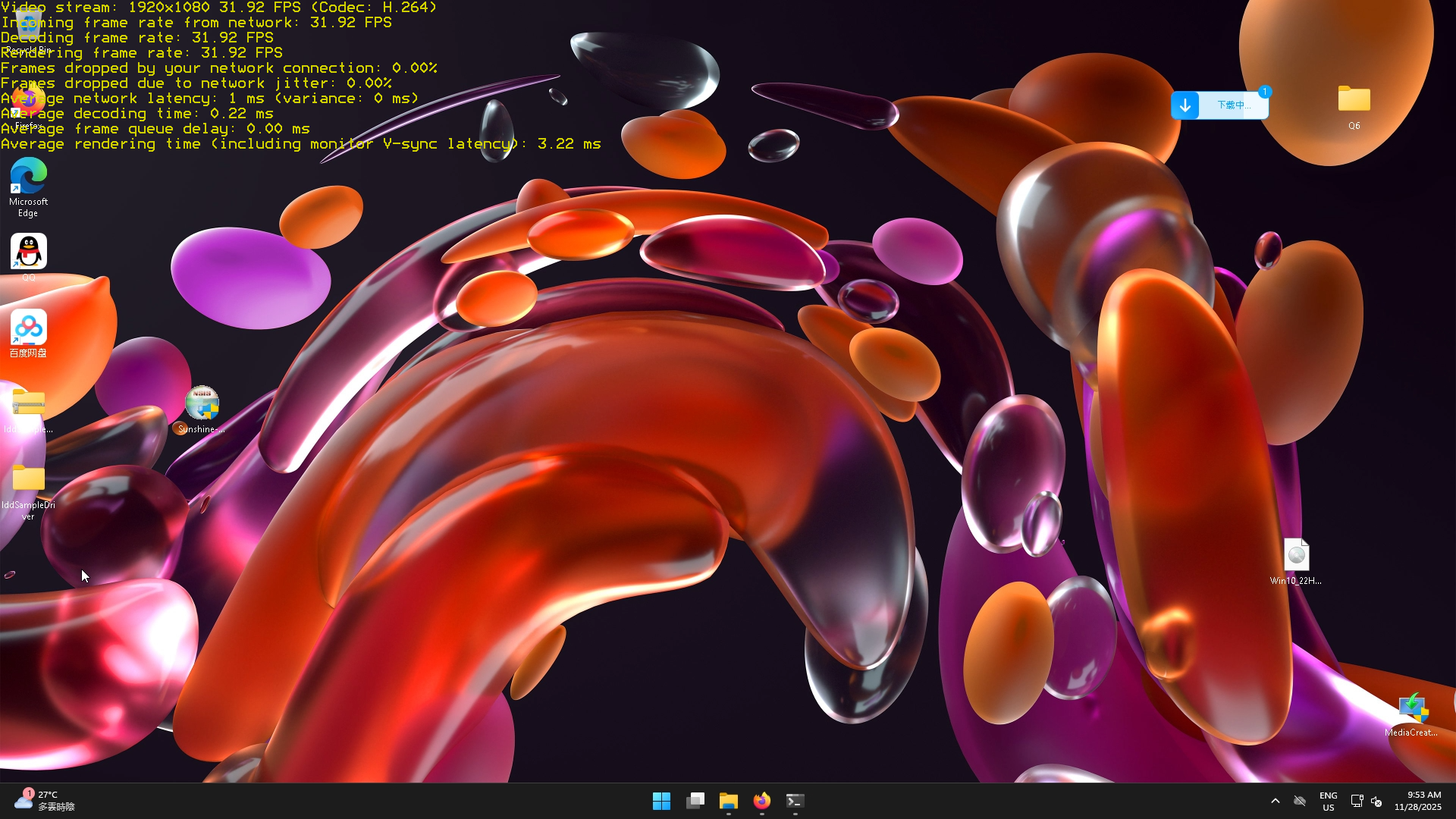
Ultimate Effect
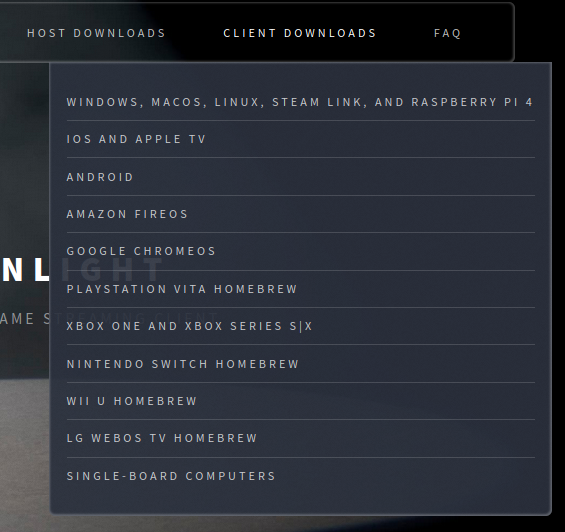
Download
Functional Point 1. GPU Strategy
Core hardware solution to solve high Host latency and heavy stuttering feeling.
- Scheme A: General Virtualization (Recommended for EPYC/Xeon deployment)
- Not yet deployed, but vGPU is hugely attractive to me, and the power consumption is 50/75w, very suitable for home use, only P4’s VRAM is small, a fly in the ointment.
- Hardware: NVIDIA Tesla P4 (8GB) + 3D printed air duct & high-speed fan.
- Config: PVE installed with
vGPU_unlockdriver. - Allocation: Split into 4
P4-2Q(2GB VRAM) profiles, assigned to 4 VMs. - Usage: Smoothly run 1080P/60FPS desktop streaming, lightweight tasks.
- Scheme B: High Performance Passthrough (Existing Equipment)
- Deployed, and Host latency immediately dropped from 20ms
30ms to 0ms5ms - Hardware: GTX 1050 Ti (4GB).
- Config: PVE uses PCIe Passthrough mode for the main Windows VM.
- Allocation: Exclusive.
- Usage: AI introductory learning (CUDA), 4K video playback, light gaming.
- Deployed, and Host latency immediately dropped from 20ms
Functional Point 2. Virtual Display Solution (Headless Display)
Solve black bars and resolution lock (1280x800) issues caused by lack of physical monitors.
- Software: IddSampleDriver (Virtual Display Driver).
- Installation Steps:
- Permissions: Run
installCert.batwith administrator privileges. - Add Hardware: Device Manager -> Action -> Add legacy hardware -> Manual list -> Display adapters -> Have Disk -> Select
IddSampleDriver.inf.
- Permissions: Run
- Settings (Windows Display Settings):
- Resolution: Manually set to 1920 x 1080.
- Multi-screen Strategy: Select the virtual screen (usually Screen 2), set “Show only on 2”.
- Cleanup: “Disconnect” extra virtual screens (3, 4, 5, 6) in settings.
Functional Point 3. Windows VM Deep Performance Optimization
Extreme optimization for Xeon/EPYC in No GPU / Software Decoding state to reduce Host Latency.
- Visual Effects:
System Properties->Advanced->Performance-> Adjust for best performance (Turn off all animation effects).
- Rollback Right-click Menu (Lower CPU Load):
- Run registry modification command in administrator terminal to restore Win10 style menu:
reg.exe add "HKCU\Software\Classes\CLSID\{86ca1aa0-34aa-4e8b-a509-50c905bae2a2}\InprocServer32" /f /ve - Action: Restart VM after running to take effect.
- Run registry modification command in administrator terminal to restore Win10 style menu:
Functional Point 4. Streaming Service Settings (Sunshine & Moonlight)
Goal: Squeeze CPU software decoding performance or adapt to GPU hardware decoding under 1ms intranet latency.
Server Side (Sunshine WebUI)
- Location:
Configuration->Advanced - No GPU (Xeon Current State):
- Encoder: Software / x264
- Software Preset: Ultrafast (Ultrafast mode, sacrificing image quality for low latency, Critical!)
- Software Tune: Zerolatency
- Threads: Manually set 8 or 16
- With GPU (P4/1050Ti):
- Encoder: NVENC
- Preset: P1 (Fastest) or P4 (Default)
Client Side (Moonlight - Ubuntu)
- Resolution/FPS:
- No GPU: 1080p / 30 FPS (Avoid stuttering)
- With GPU: 1080p / 60 FPS
- Bitrate: 10 Mbps - 15 Mbps (Reduce CPU encoding pressure)
- V-Sync: Off (Off to reduce input latency)
- Video Codec: H.264 (Force use old encoding, reduce encoding/decoding pressure)
- Input Settings:
- Optimize mouse for remote desktop instead of games (Enable mouse direct mapping, improve hand feel).
Functional Point 5. Keyboard/Mouse Seamless Roaming & Clipboard (KVM)
Solve Moonlight mouse locking and clipboard desynchronization issues.
Actually, this point is optional. If purely using Thin Client for remote connection solutions, locking the mouse in the Server is the true usage. So tentatively keeping this functional point as a backup.
- Software: Barrier (or Input Leap).
- Architecture:
- Server (Service Side): Ubuntu Client (Has physical keyboard/mouse).
- Client (Client Side): Windows VM (Controlled Side).
- Configuration Steps:
- Ubuntu side checks Server, drag in new screen in
Configure Server, name itwin11-vm(Must match Windows Side Screen Name). - Windows side checks Client, fill in Ubuntu IP.
- Effect: Mouse moves out of screen edge to automatically switch control, Clipboard Sharing (Text/Ctrl+C/V).
- Cooperation: Release mouse lock (
Ctrl+Alt+Shift+Z) in Moonlight or use fullscreen.
- Ubuntu side checks Server, drag in new screen in